Home/Blog/Tech Support/AirDrop Not Working? Fix It Between iPho...
๐Ÿ’ปTech Supportยท 5 min read ยท May 30, 2026

AirDrop Not Working? Fix It Between iPhone, iPad, and Mac

AirDrop can't find the other device. Here is how to fix it when AirDrop refuses to work between your Apple devices.

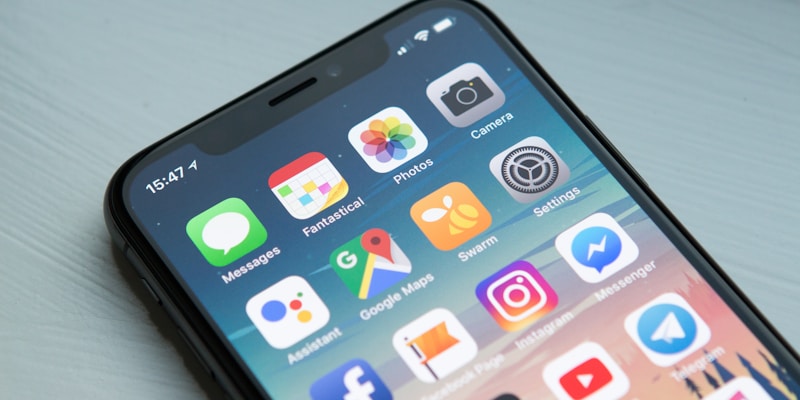
HelpByExperts AirDrop troubleshooting guide for all Apple devices
Need help with this? Chat with a verified expert network.
Get personalized advice for your specific situation โ€” just $3.
Chat with a tech support expert โ†’
In this article
1. Check AirDrop Visibility Settings2. Verify WiFi and Bluetooth Are Both On3. Move Devices Closer Together4. Restart Both Devices and Reset Network Settings

Check AirDrop Visibility Settings

The number one reason AirDrop does not work is that the receiving device is set to Receiving Off or Contacts Only. On iPhone and iPad, open Control Center, press and hold the connectivity panel (WiFi/Bluetooth area), tap AirDrop, and select Everyone for 10 Minutes. On Mac, open Finder, click AirDrop in the sidebar, and change Allow Me to Be Discovered By to Everyone. The Contacts Only setting only works if both devices have each other in their Contacts app with the associated Apple ID email or phone number.

Verify WiFi and Bluetooth Are Both On

AirDrop requires both WiFi and Bluetooth to be enabled on both devices. They do not need to be on the same WiFi network, but WiFi must be turned on (not connected to a network, just turned on). Check that both WiFi and Bluetooth are enabled on both the sending and receiving devices. Also make sure Airplane Mode is off and that Personal Hotspot is turned off on both devices โ€” Personal Hotspot interferes with AirDrop.

Move Devices Closer Together

AirDrop uses Bluetooth to discover nearby devices and WiFi to transfer files. Bluetooth range is about 30 feet but works best within 10 feet. Make sure both devices are within arm's reach of each other during initial discovery. Once the transfer starts, they can be further apart. If you are in a crowded area with many Apple devices, AirDrop may struggle to find the specific device โ€” reduce the number of potential AirDrop targets by having others turn off AirDrop.

Restart Both Devices and Reset Network Settings

If AirDrop still does not work, restart both devices. On iPhone, this clears the Bluetooth and WiFi stacks. If restarting does not fix it, reset network settings on the problematic device: Settings, General, Transfer or Reset iPhone, Reset, Reset Network Settings. Warning: this also erases saved WiFi passwords, so you will need to re-enter them. After reset, re-enable AirDrop and try again. This resolves the vast majority of persistent AirDrop issues.

Pro Tips

โœ“AirDrop set to Contacts Only won't work unless both devices have each other saved in Contacts with Apple ID email
โœ“Both WiFi and Bluetooth must be on for AirDrop โ€” it uses Bluetooth for discovery and WiFi for transfer
โœ“Personal Hotspot conflicts with AirDrop โ€” turn it off on both devices
โœ“AirDrop transfers are encrypted end-to-end, making it one of the safest ways to share files between devices

Still stuck? Talk to an expert.

Get personalized tech support help for your specific situation โ€” just $3.

Chat with an expert โ€” $3 โ†’

More Tech Support Articles

HelpByExperts WiFi troubleshooting guide with router setup tips
WiFi Not Connecting? 8 Fixes That Actually Work
7 min read
HelpByExperts computer speed optimization guide for slow PCs and Macs
Computer Running Slow? 10 Ways to Speed It Up
8 min read
HelpByExperts Windows blue screen of death BSOD troubleshooting guide
Blue Screen of Death (BSOD): Causes and How to Fix It
7 min read
HelpByExperts malware removal and computer virus protection guide
How to Remove a Virus from Your Computer (Complete Guide)
8 min read

Related Articles

HelpByExperts Mac performance optimization and speed fix guide
Mac Running Slow? 8 Fixes That Actually Work in 2026
7 min read
HelpByExperts guide to finding a lost or stolen phone using tracking features
How to Find Your Lost Phone (iPhone and Android)
6 min read
HelpByExperts guide to speeding up a slow iPhone
How to Speed Up a Slow iPhone (10 Fixes That Work)
6 min read

Related Tech Support Questions

My laptop gets extremely hot and randomly shuts down after about 30 minutes of use. The fan is runni...
Answered by Shaun Cain, Certified HVAC & Refrigeration Technician ยท 92 found helpful
My WiFi keeps disconnecting every 10-15 minutes on my Windows 11 laptop. My phone stays connected fi...
Answered by HelpByExperts Research Team, Editorial Staff ยท 78 found helpful
My iPhone 14 battery used to last all day but now it dies by 2 PM. I have not installed any new apps...
Answered by HelpByExperts Research Team, Editorial Staff ยท 65 found helpful
My desktop computer started making a loud grinding or clicking noise from inside the case. It still ...
Answered by Andrew Ducharme, Red Seal Certified Electrician ยท 53 found helpful
โ† All articlesTech Support ServiceQ&APrivacyTermsContact